On this page
This worksheet turns the baseline method into two tables you can copy: an upload log with one row per video per traffic source, and a summary with one row per source. The CTR guide explains why a baseline of your own beats any benchmark and gives the method in outline; this page is the how, in enough detail to build it in an hour and keep it current in ten minutes a month. Nothing here needs a tool beyond YouTube Analytics and a spreadsheet.
What you need before you start
- At least ten long-form uploads of the same format, old enough that the age window you choose has closed for each. Twenty is better; more than twenty adds little.
- Access to YouTube Analytics for those videos, with a custom date range.
- A spreadsheet, or a page of a notebook. The arithmetic is sorting and picking a middle value.
- A decision on the age window, made once and never changed inside a worksheet. The first seven days suits channels that upload weekly or more; the first 28 days suits channels whose videos gather impressions slowly.
On the window, we would take the seven days for any channel uploading at least fortnightly, even though the 28-day figure is steadier, because a lesson that arrives a month after the upload is a lesson about a cover you have already made three more of.
If the channel has fewer than ten comparable uploads, build the worksheet anyway and mark the summary "provisional". A baseline from six videos is noisy and still more useful than a benchmark from nobody's channel. Fill it in as uploads arrive and drop the label at ten.
Table 1: the upload log
One row per video per traffic source. A video with three sources worth recording takes three rows. Keep the header block above the table, because a log is only comparable with itself when the format and the window are fixed.
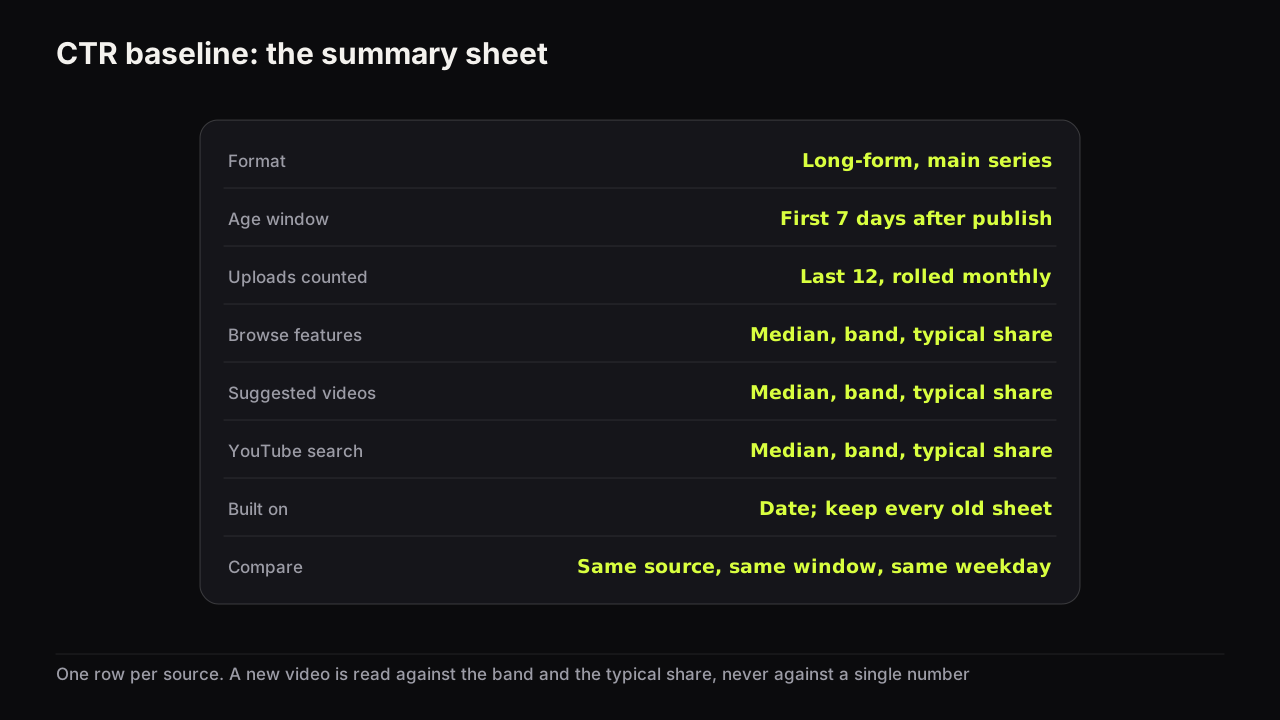
Header: Format: long-form, main series. Age window: first 7 days. Sources logged: Browse features, Suggested videos, YouTube search. Built: date.
| Video | Published (weekday) | Source | Impressions from source | Share of video's impressions | CTR from source |
|---|---|---|---|---|---|
| Browse | |||||
| Suggested | |||||
| Search | |||||
| Browse | |||||
| Suggested | |||||
| Search |
Add a seventh column for notes if anything unusual touched the window: a mention elsewhere, a community post, a holiday, a title change. A row with a note is still logged; it is just read with the note beside it.
How to fill it in
The reach reporting in YouTube Analytics shows, for a single video, its impressions and impressions click-through rate broken down by traffic source, and it accepts a custom date range. That is the whole tool. As of September 2026 the exact layout of that report changes from time to time, so the steps below describe what to find rather than where to click.
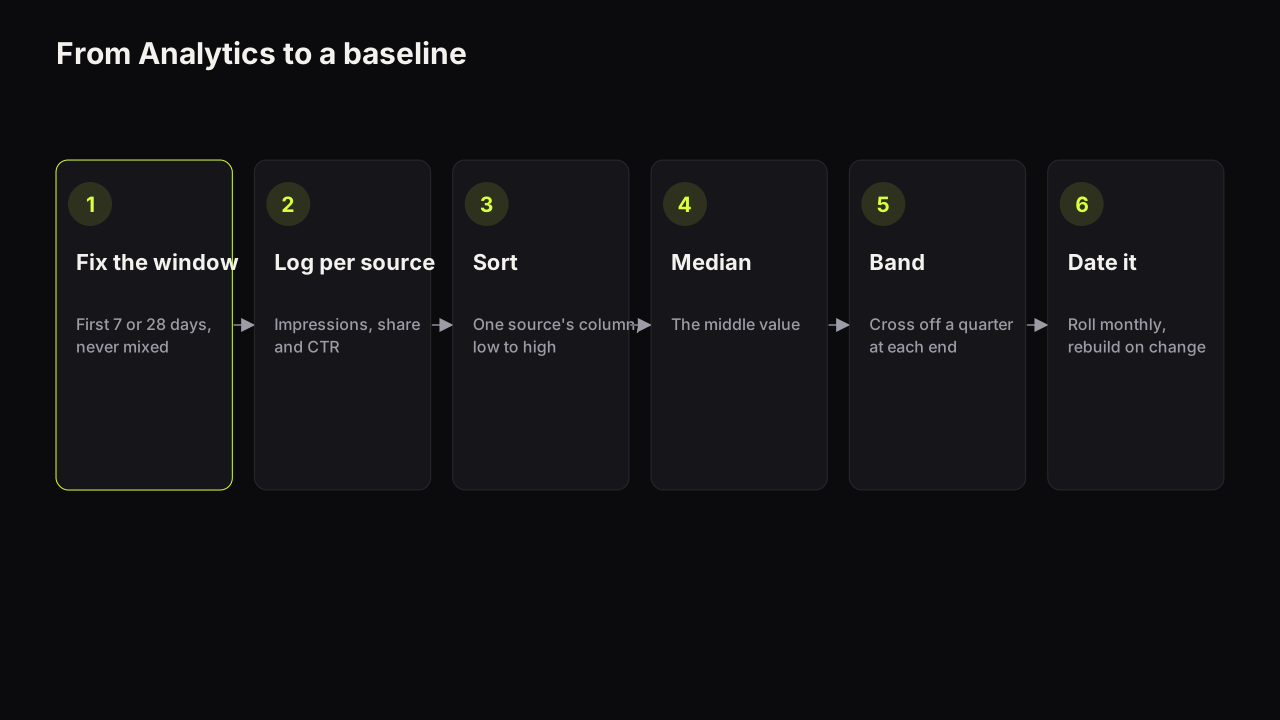
- Set the date range to the window. For each video, the range starts on the publish date and runs for the length of the window. Use the same length for every video; a video read at day 7 and a video read at day 28 belong in different worksheets.
- Open the video's impressions by traffic source. Record the impressions and the click-through rate for each source you are logging, one row each.
- Record the total impressions for the window and compute each source's share: the source's impressions divided by the video's total. The share is the column that makes the worksheet more than a list of rates, because it tells you what a normal mix looks like for this channel.
- Skip a source when it carried almost none of the video's impressions. A click-through rate from a handful of impressions is noise, and one noisy row can move a median in a small set.
- Note the weekday. Uploads on different days of the week can meet different audiences, and the weekday column lets you check later whether a low row is a Sunday row.
- Do not log the blended CTR. The single number YouTube Studio shows on the video's overview is a mix of all sources, and the mix is different for every video. It is the number this worksheet exists to replace.
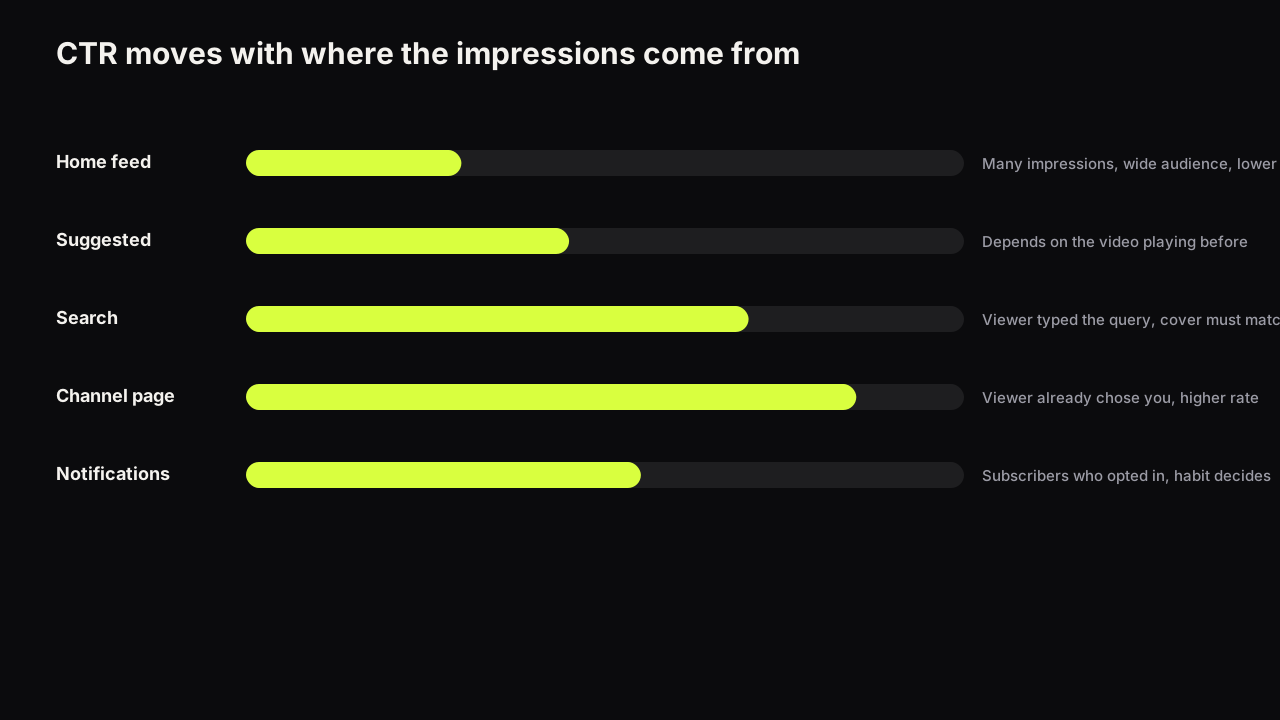
We recommend logging three sources for most long-form channels: Browse features, Suggested videos and YouTube search. Add the channel page if it carries a meaningful share of your first-week impressions, which is common on channels whose subscribers browse the channel directly, and add notifications only if you have a reason to study them. More sources means more rows for little gain; the three above are the ones whose share changes most from video to video, and the reasons each source behaves differently are in what each traffic source does to CTR.
Table 2: the summary
One row per source. This is the table you read a new video against, and the only one you need to keep in front of you.
| Source | Uploads counted | Median CTR | Band (middle half) | Typical share of impressions | Built on |
|---|---|---|---|---|---|
| Browse features | from ___ to ___ | ||||
| Suggested videos | from ___ to ___ | ||||
| YouTube search | from ___ to ___ | ||||
| Channel page (if logged) | from ___ to ___ |
"Typical share" is the median of the share column for that source across the logged videos. It is the channel's normal mix, and it is what a source shift is measured against.
Computing the median and the band by hand
The CTR guide gives the reason a median beats a mean (one breakout video drags an average). This is the arithmetic.
- Take one source's CTR column and sort the values from lowest to highest.
- The median is the middle value. With an odd count it is the one in the middle. With an even count it is halfway between the two middle values.
- The band is the middle half. Cross off the lowest quarter of the values and the highest quarter. The lowest and highest values that remain are the edges of the band. With twelve values, cross off three at each end and read the fourth and ninth.
- Write both down, with the count. A median without a band tells you the middle and nothing about what counts as a real difference. The band tells you: a new video inside it is a normal upload, whatever the number.
A worked example with made-up figures, to show the steps and nothing else. Twelve Browse rows sorted: 2.9, 3.4, 3.6, 3.8, 4.0, 4.1, 4.3, 4.4, 4.6, 5.0, 5.7, 7.9 (all percentages). The median is halfway between the sixth and seventh values, 4.1 and 4.3, so 4.2. Crossing off three at each end leaves 3.8 to 4.6 as the band. The 7.9 at the top, a breakout video, moved neither number, which is the point of using them. These values are invented for the arithmetic and say nothing about what any channel should see.
Reading a new video against the worksheet
When the new video's window closes, log it the same way, then place each source's rate against the summary. Two columns decide the reading: whether the rate sits inside the band, and whether the source's share of impressions is near the typical share.
| Share of impressions near typical | Browse or Suggested share far above typical | |
|---|---|---|
| Inside the band | A normal upload. Nothing to learn from CTR; read retention. | Wider reach at a normal rate. The good case. |
| Below the band | A packaging question. Test a second cover on the next eligible video, or swap if this one cannot be tested. | Distribution widened; the rate fell because the audience broadened. Leave the cover; read retention. |
| Above the band | Something on this cover worked. Write down what before you forget. | Rare and worth a note of its own. |
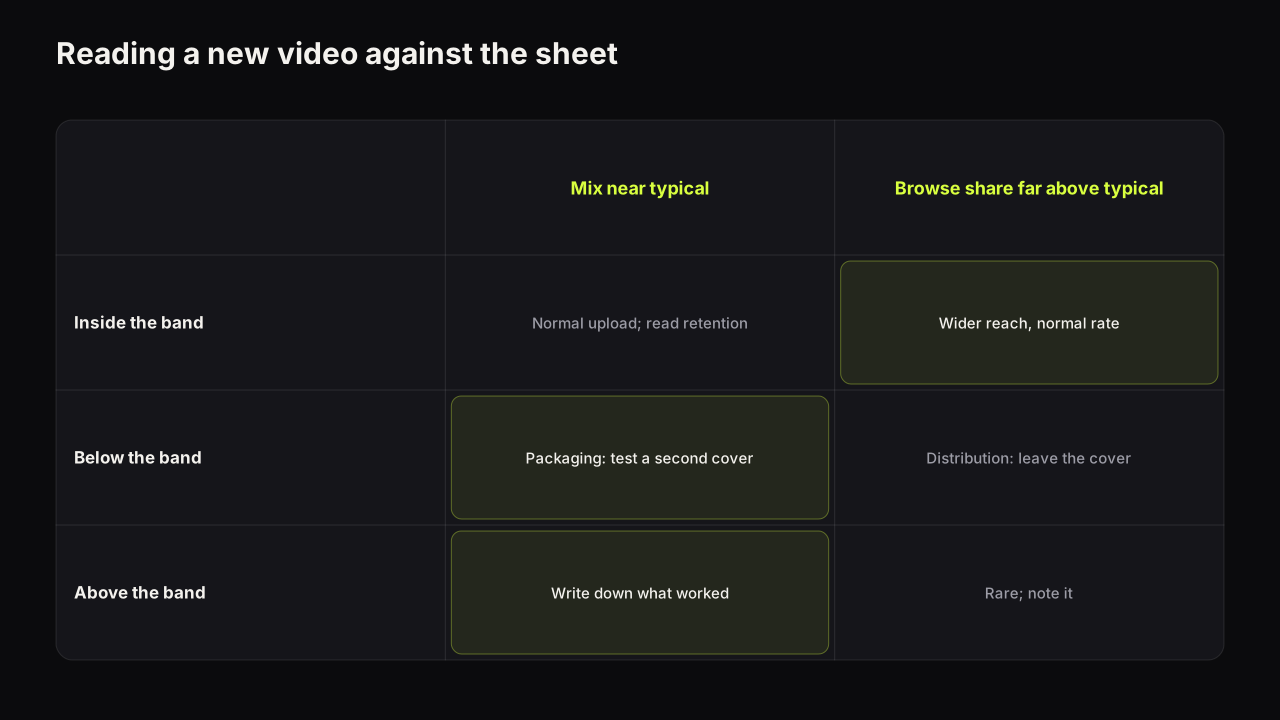
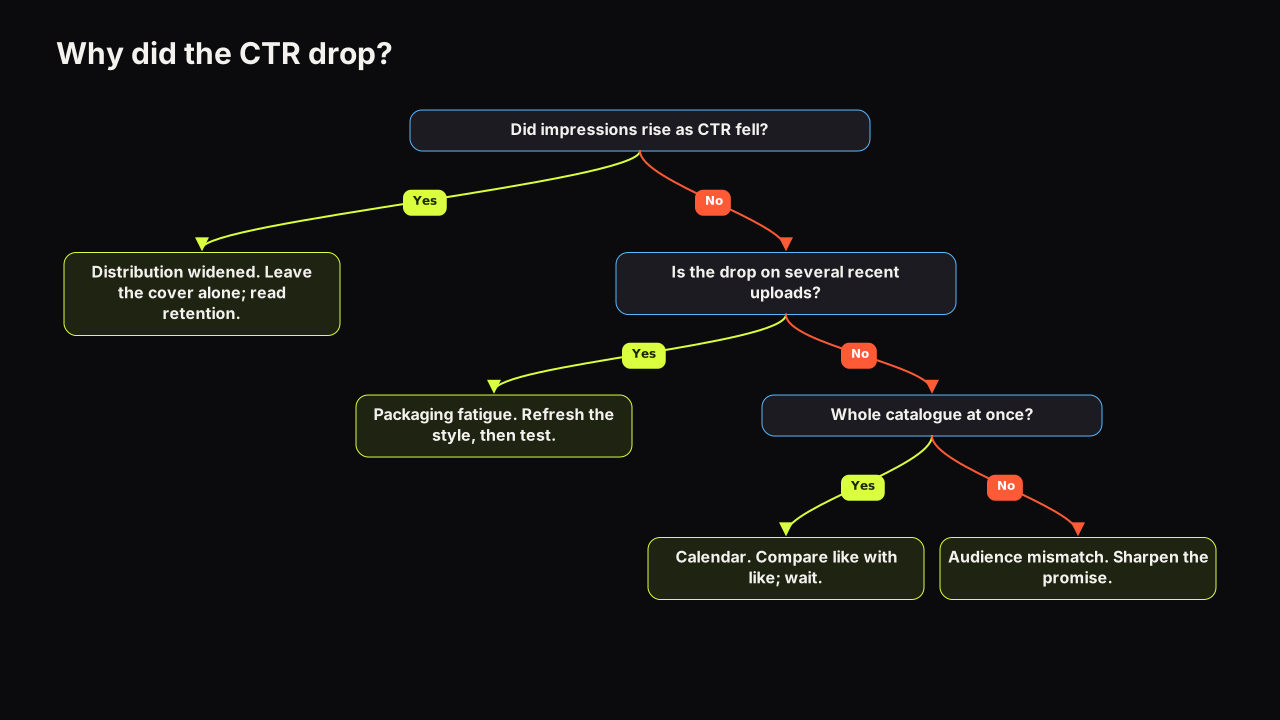
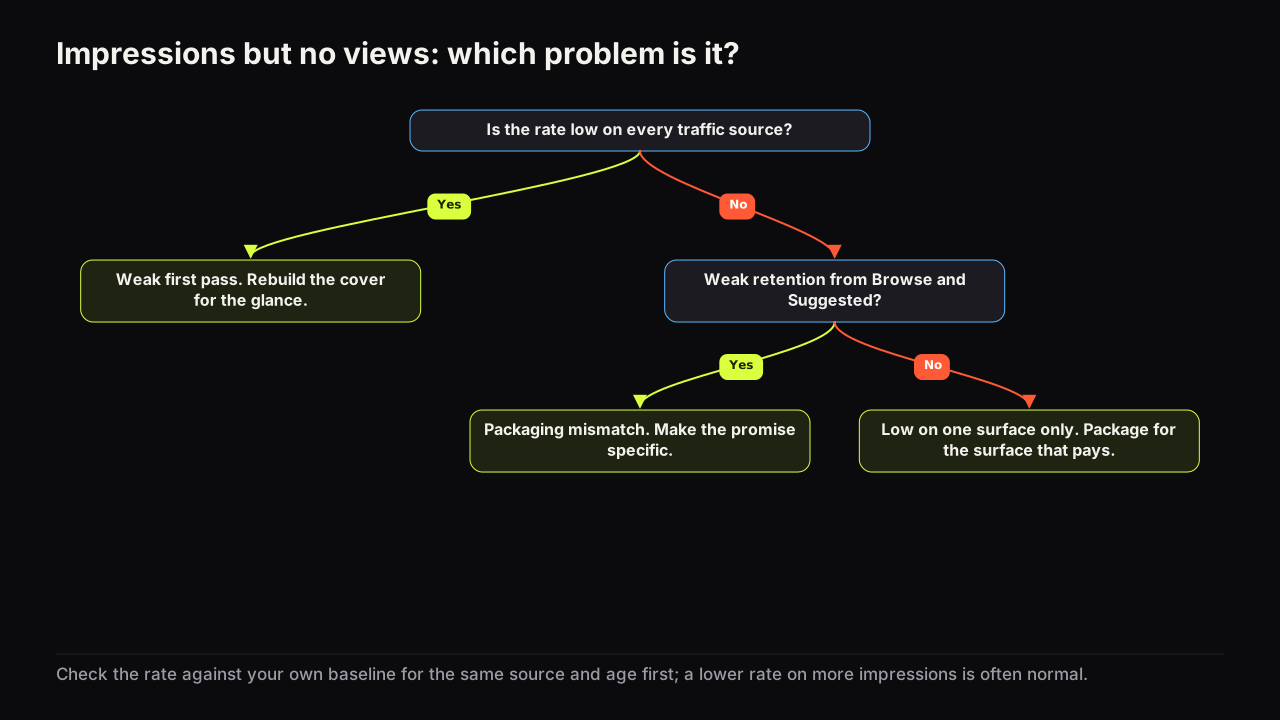
The bottom-left and right-hand columns are covered in depth elsewhere: the four reasons a CTR falls and how to tell them apart takes the distribution case further, and a video that collects impressions and almost no views covers a rate well below the band on every source at once. The point of the worksheet is that you arrive at those pieces already knowing which one you need.
Two checks before acting on any row. First, the weekday: a Sunday upload sitting just below the band of a set that is mostly Tuesdays is not yet a packaging problem; match the weekday or accept a small gap as noise. Second, the calendar: if the whole set was built in one season and the new video landed in another, how seasonality moves CTR explains why the band may not apply.
Say the row that lands below the band belongs to a lighting tutorial whose cover is a softbox on a grey ground, the words "ONE LIGHT" in white, and your face at a fifth of the height in the corner, looking at the camera. Its Search row sits inside the band and its Browse row under it, with the Browse share typical. That is a packaging question on Browse only, and the split says why: a search viewer typed something like "one light setup" and the cover confirms it, while a Browse viewer had no query, and a small face on grey gives them nothing to stop on. The second cover for that series keeps the words, the ground and the softbox and changes the face: half the height, looking at the softbox. One lever, so a win names it. The figures behind this paragraph are invented, like the ones in the note above.
When the reading is "test a second cover", the test needs a variant that differs in one thing. On the bench, Tweak uses the finished render as the source for the next one, so you can change the expression, the headline or the dominant colour and keep the rest identical; how to run the test itself, with Test & Compare or a manual swap, is the next step.
Whatever the reading, write the lesson, not the number. A row that says "calm face beat shocked face on Browse for this series" is worth more next month than the rate that produced it; the thumbnail decision log is the companion table for those lessons, and it is built to sit beside this one.
Keeping it current: the monthly update
A baseline is a snapshot of a channel that keeps changing, so the worksheet has a maintenance routine. Ten minutes, once a month, works for most channels; a channel uploading daily may want it fortnightly.
- Log the uploads whose window closed since last time. Same steps as above.
- Keep the set at its size. If the summary counts fifteen uploads, add the new rows and drop the oldest ones so it still counts fifteen. The baseline should describe the channel as it is now, not as it was a year ago.
- Recompute median, band and typical share per source. Sorting a column and reading two positions takes a minute per source.
- Compare the new summary with the old one, and keep the old one. Date every summary. A stack of dated summaries is a record of how the channel's mix and rates have drifted, which is a question you will be asked by your own future self.
- Rebuild from scratch, rather than roll, when something structural changed. A new format or series, a large change in typical share (the channel moved from subscriber-heavy to Browse-heavy, say), or a subscriber jump that changed who sees the first impressions. After any of those, the old rows describe a different channel.
The worksheets that survive are the ones that are updated as part of another habit rather than on their own. Channels that fold the ten minutes into a weekly or monthly review of the whole channel keep the sheet current; channels that set a reminder to "update the baseline" let it lapse within a quarter. A weekly thumbnail review is one such habit, and the worksheet update fits its monthly version.
Mistakes that quietly break the worksheet
- Mixing formats: Shorts, live streams or a second series in the same set. Each has its own mix and its own band; give each its own worksheet.
- Using lifetime CTR instead of the window. A video's lifetime rate keeps changing as its mix changes, so no two lifetime figures are read at the same age.
- Logging the blended number. It is the mix, not the cover.
- Treating the median as a target. It is the middle of your own past. A new video at the median is normal, not a failure to improve.
- Reading a row before the window closes. The most recent day or two of figures can still be settling.
- Changing the window because one video looked better at a different age. The window is fixed per worksheet; if it needs to change, start a new sheet.
What to do next
Pick the window tonight and log the last ten uploads for Browse, Suggested and search. Sort each column, write the median and the band in the summary, and date it. Then, before the next video's window closes, decide which cell of the reading table would make you act, so the decision is made before the number arrives. If the reading turns out to be a swap on a video that is already live, the decision tree for changing a thumbnail covers age, impression volume and what does not reset.